

Friday, December 9, 2016

Wednesday, July 27, 2016
Tuesday, July 26, 2016

Friday, June 17, 2016
This continues to blow my mind
2016 AICP Sponsor Reel - Dir Cut from Method Studios on Vimeo.
An amazing combination of motion capture and motion graphics.
An amazing combination of motion capture and motion graphics.
Monday, November 9, 2015


Thursday, June 11, 2015


Wednesday, June 10, 2015
If you know me, you know I’m super pumped for Jurassic World.

I’m also super pumped that I just got my Foldio2 lightbox.
Tuesday, April 14, 2015

Saturday, April 11, 2015
Let's Party


I’m so pumped about How Awcard’s newest card. A really awesome art director at work drew it for me as a gift, and we both decided that it just had to be turned into a birthday card.
Thursday, April 9, 2015



Wednesday, March 11, 2015
A little art director geekery
I am by no means an Apple Guru, but I do tend to dabble this things a bit more than my friends. And I'm usually the person they go to when their computers aren't working. Until today, the most daring and complicated thing I've accomplished was figuring out how to get my Macbook Pro to mount a drive for Time Machine that's connected to a Mac Mini on my network. Making that work was a huge accomplishment for me.
But today, I just made my life as an art director a heck of a lot easier, by figuring out how to sync my user fonts between my work iMac, my home iMac, and my Macbook Pro laptop. And it's all thanks to Dropbox and symbolic links.
Basically, a symbolic link creates a clone of a particular folder and keeps that folder in sync with it's original folder no matter where you put it (as long as the link to the original folder can be found. You can't disconnect the drive the original folder is on and expect it to work).
So, I deduced that if I created one main "Font" folder in my dropbox, and then used symbolic links to sync that folder with my user font folder on each computer, then my fonts would always be in sync on all three computers. Hallelujah! For someone who is constantly switching from computer to computer when working from home, work and on the road. So, I wanted to share the love and wisdom for anyone looking for a simple way to keep their font library consistent.
Now, I use FontBook for my font organization. Many designers might scoff at this, but it's simple and works for me just fine. I've tried FontExplorer and FontCase before, but neither did anything extraordinary enough for me to keep using them.
Make sure you back up your computer before messing with this stuff. Just in case.
Here's how to set things up:
First, your user fonts, when using FontBook, are kept in your user Library folder. ~/Library/Fonts
To view this folder, you'll need to hold down option while clicking GO in Finder, so that Library shows up.
Once open, you'll see a folder inside called "Fonts". This is your collection of User-installed fonts.
Copy this folder to your Dropbox folder.
Next, you'll need to make a symbolic link to this folder. You could do it through terminal, or you can install this handy little action script that will allow you to right click and do it through services.
This video was very helpful with explaining how to do that:
Now that you've created a link to your Fonts folder, you can replace the Fonts folder in your Library folder. Easy-peasy.
However, on two of my computers, I was running into the issue where when I tried to delete or replace the Fonts folder in my Library, I would get the error: "can't be modified or deleted because it is required by OS X."
I thought I had hit a dead end. Even though I was an admin of the computer, changing the read/write capabilities of the users and folder didn't do anything.
Then I found this handy article about moving and renaming files through Terminal.
So, if you run into this same issue, all you need to do is rename your Fonts folder to something else, like so:
Open Terminal and write "sudo mv ~/Library/Fonts ~/Library/Fonts_old". This will rename your Fonts folder in your Library, allowing you to drag in the new symbolic link Fonts folder. Then you can delete your old Fonts folder, although you may be asked for your admin password to delete it.
And that's it! Do this on each computer that you want to sync your fonts on, and just make sure that you are using the same Dropbox account on each one. Then, anytime you want to install a new font, just put it in your Dropbox/Fonts folder and it will show up on all your computers that are symbolically linked.
</geekiness>
But today, I just made my life as an art director a heck of a lot easier, by figuring out how to sync my user fonts between my work iMac, my home iMac, and my Macbook Pro laptop. And it's all thanks to Dropbox and symbolic links.
Basically, a symbolic link creates a clone of a particular folder and keeps that folder in sync with it's original folder no matter where you put it (as long as the link to the original folder can be found. You can't disconnect the drive the original folder is on and expect it to work).
So, I deduced that if I created one main "Font" folder in my dropbox, and then used symbolic links to sync that folder with my user font folder on each computer, then my fonts would always be in sync on all three computers. Hallelujah! For someone who is constantly switching from computer to computer when working from home, work and on the road. So, I wanted to share the love and wisdom for anyone looking for a simple way to keep their font library consistent.
Now, I use FontBook for my font organization. Many designers might scoff at this, but it's simple and works for me just fine. I've tried FontExplorer and FontCase before, but neither did anything extraordinary enough for me to keep using them.
Make sure you back up your computer before messing with this stuff. Just in case.
Here's how to set things up:
First, your user fonts, when using FontBook, are kept in your user Library folder. ~/Library/Fonts
To view this folder, you'll need to hold down option while clicking GO in Finder, so that Library shows up.
Once open, you'll see a folder inside called "Fonts". This is your collection of User-installed fonts.
Copy this folder to your Dropbox folder.
Next, you'll need to make a symbolic link to this folder. You could do it through terminal, or you can install this handy little action script that will allow you to right click and do it through services.
This video was very helpful with explaining how to do that:
Now that you've created a link to your Fonts folder, you can replace the Fonts folder in your Library folder. Easy-peasy.
However, on two of my computers, I was running into the issue where when I tried to delete or replace the Fonts folder in my Library, I would get the error: "can't be modified or deleted because it is required by OS X."
I thought I had hit a dead end. Even though I was an admin of the computer, changing the read/write capabilities of the users and folder didn't do anything.
Then I found this handy article about moving and renaming files through Terminal.
So, if you run into this same issue, all you need to do is rename your Fonts folder to something else, like so:
Open Terminal and write "sudo mv ~/Library/Fonts ~/Library/Fonts_old". This will rename your Fonts folder in your Library, allowing you to drag in the new symbolic link Fonts folder. Then you can delete your old Fonts folder, although you may be asked for your admin password to delete it.
And that's it! Do this on each computer that you want to sync your fonts on, and just make sure that you are using the same Dropbox account on each one. Then, anytime you want to install a new font, just put it in your Dropbox/Fonts folder and it will show up on all your computers that are symbolically linked.
</geekiness>
Sunday, March 1, 2015
Tuesday, April 15, 2014
Tuesday, March 4, 2014
Javier Pérez





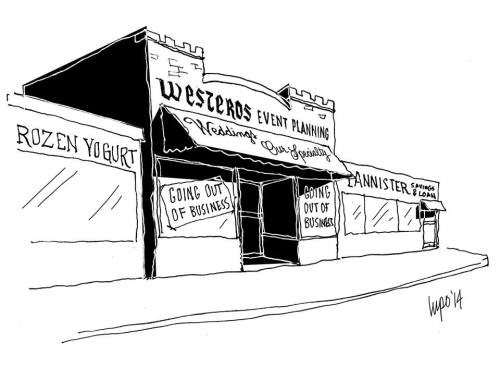
I love it when people use Instagram for real creativity, not just vintagefying their lunch. (And I know I’m guilty of that too. I need to step up my game.)
Check out Javier Pérez and his awesome Instagram feed where he transforms everyday objects into fun little doodles.
Thursday, February 20, 2014

Tuesday, February 18, 2014

Sunday, February 9, 2014
Thursday, December 19, 2013
The Whimsically Wonderful Holidelightful Festively Fantastic Cardtraption

I am really excited to share with you all the first major project that I have been working on since I started my new job at o2 two months ago. It’s our company holiday card, the Whimsically Wonderful Holidelightful Festively Fantastic Cardtraption!
Another art director here did all of the illustrations, while I was in charge of all the artwork for the nearly infinite number of card combinations that can be created. It was a lot of work and I’m really proud of everyone who worked so hard on it, and I think it turned out amazing.
Check it out!
Tuesday, December 10, 2013
Christmas Cards
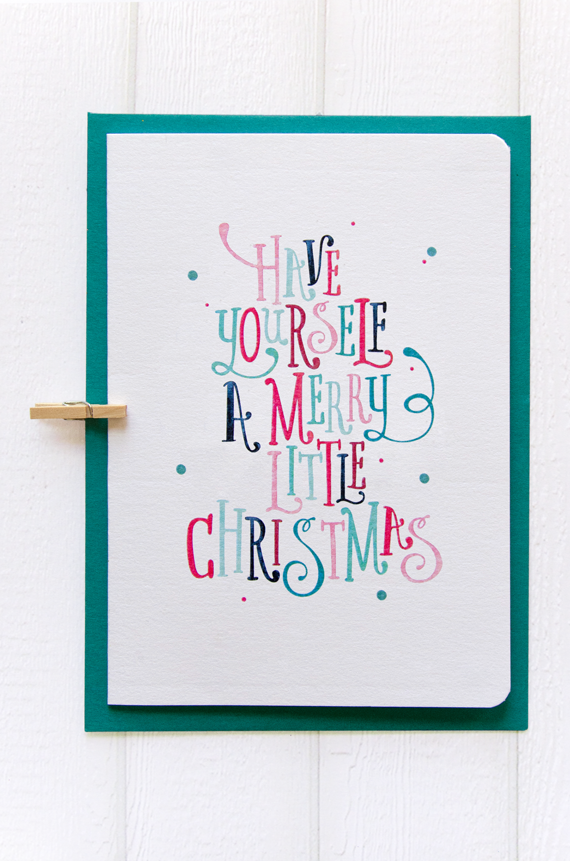
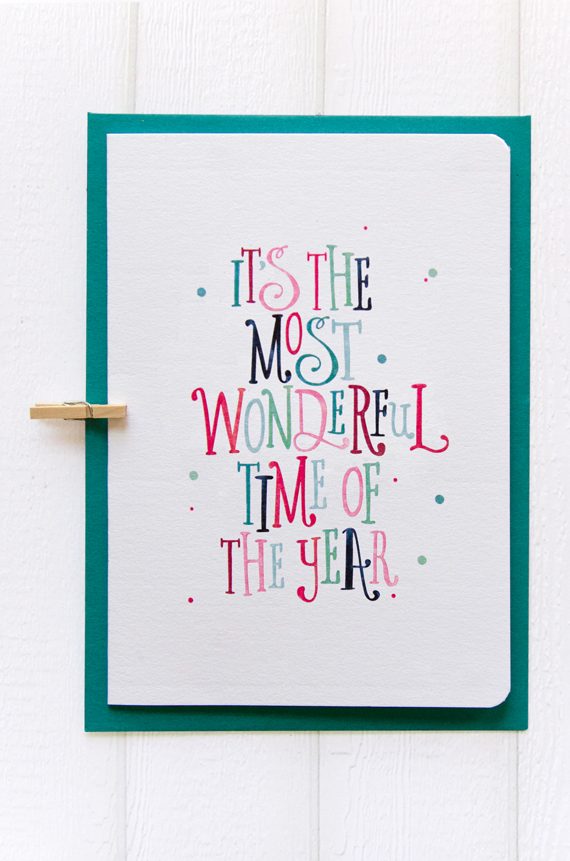
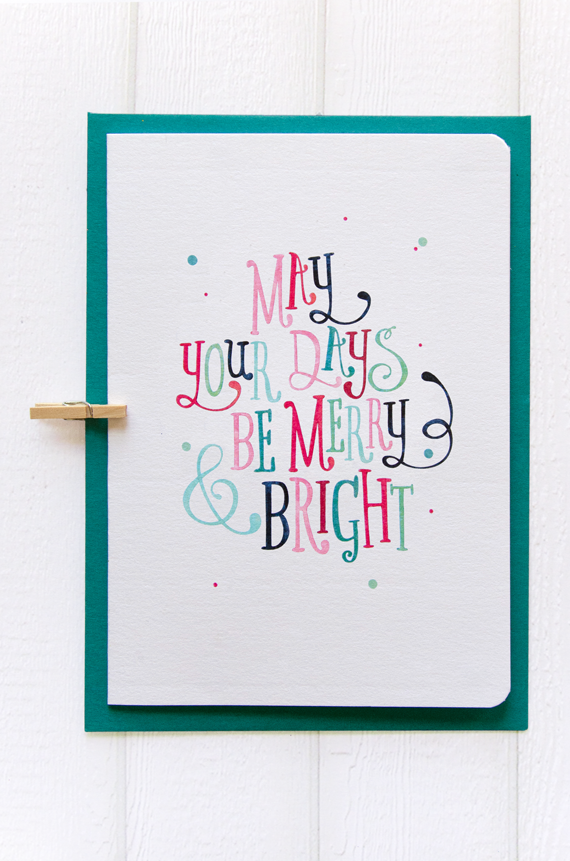
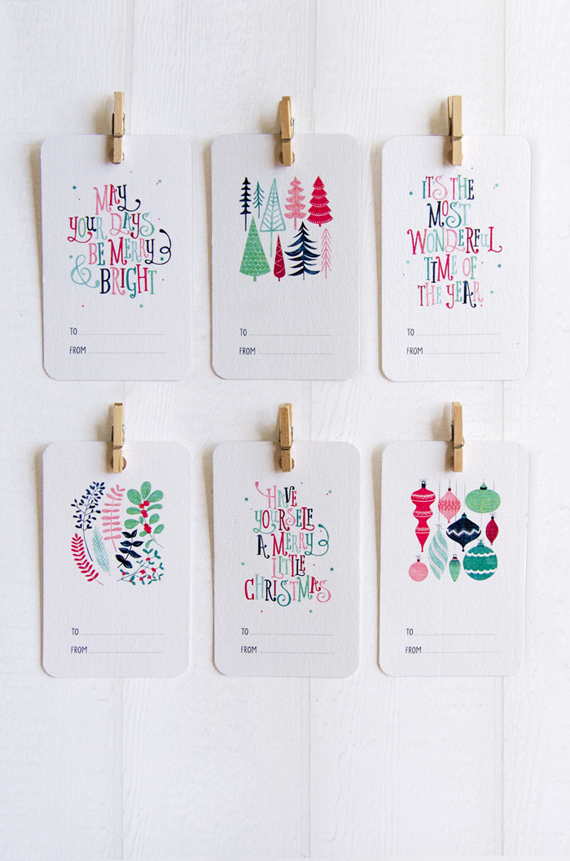
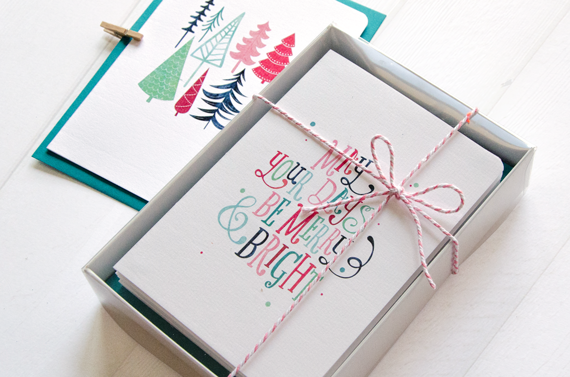
I obviously have a soft spot for How Awcard cards, but these little Christmas cards are just delightful.
betype:
Christmas Cards & Gift Tags by Love Carli.
Wednesday, December 4, 2013

Subscribe to:
Posts (Atom)